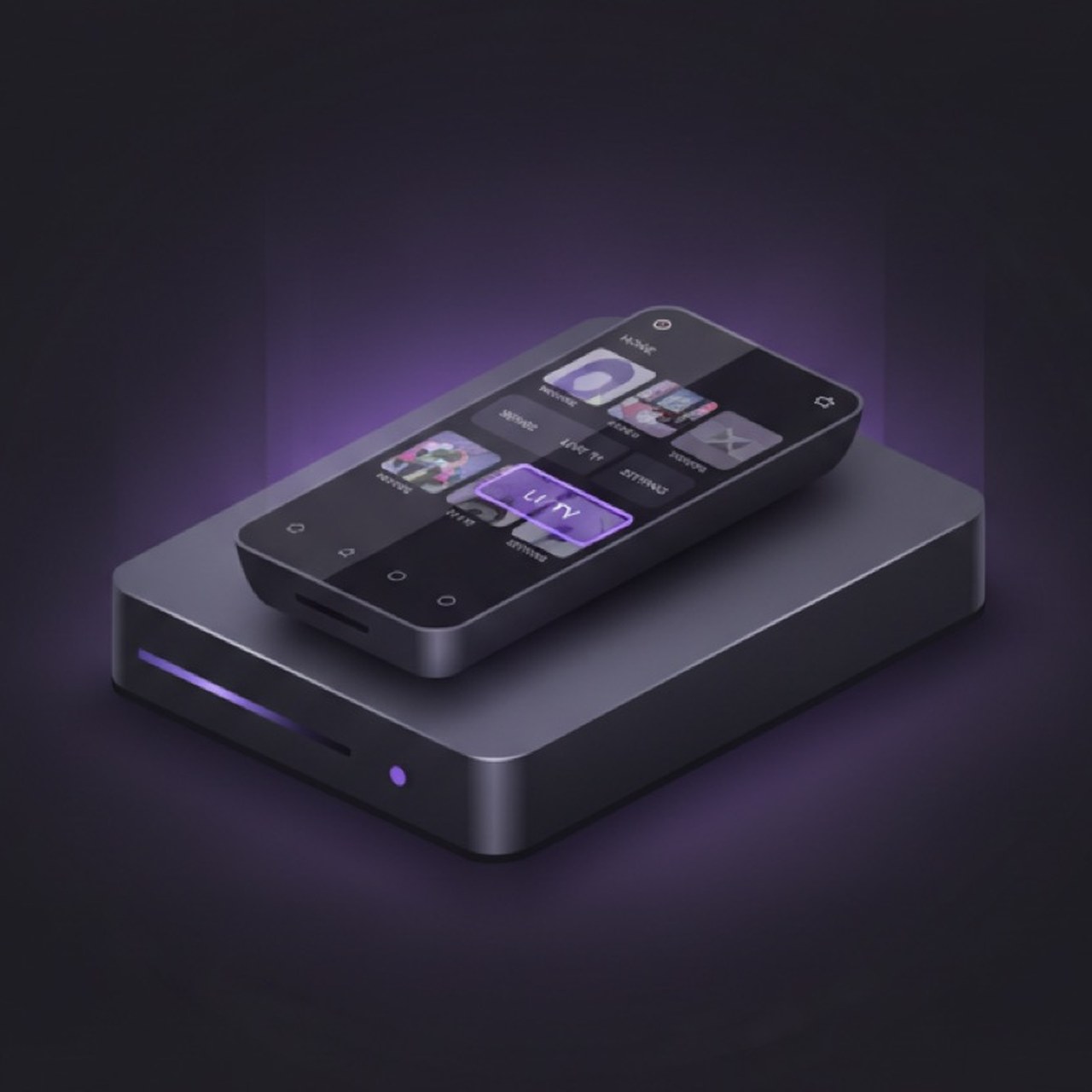
Before setup: which box do you actually have?
The box says “Android”, the TV shows an app selection, and a browser guide describes Fire TV. Those three clues do not establish the right installation route. Find the full model name and operating system in the device settings. Note both before looking for an app or spending money.
A box running Android is not automatically an Android TV box with the right TV apps. The interface, store and controls must fit the actual device. Google explains in its TV hardware documentation why TV apps need to support remote controls and directional buttons. An input field that works on a phone can be awkward from the sofa.
What you can plan for with TELOS on Android TV right now
The TELOS availability status dated 21 October 2026 lists Android TV and Google TV as in preparation, with no confirmed date. The published Android app is listed for phones and tablets. A developed TV build, a smartphone store page or a Fire TV version therefore does not confirm that TELOS can be installed from your box’s Play Store.
Check the official download page before setup. If it does not confirm an Android TV route, you can still prepare the device and provider access. Do not buy a box expecting a TELOS TV app to be available today. An existing Fire TV device uses its own Fire TV version and requirements; that is not an installation route for any Android box.
Organise your access without sharing it publicly
Before entering anything, identify the access type your provider supports. Xtream requires a server address, username and password. M3U requires the complete playlist link. A website for managing your account is not automatically the server address for a player. A single video link is not necessarily a complete playlist.
If details are missing, ask the provider directly: “Which format is intended for an external player, what server address goes with it, and how many streams may I use at once?” That is more useful than trying random fields. The Xtream guide and M3U guide explain how to identify each format.
Keep access details private. Playlist links can contain login information. For an initial support request, device, app version, source type and the visible error message are enough; leave out private addresses. Do not alter the provider’s URL by guesswork: a path or extra parameter may be required for access.
Prepare the box for a manageable first attempt
Use the power supply specified by the device maker and connect the box to a suitable HDMI input. Check that you can navigate settings and the app selection with the remote. Also make sure the date and time are plausible and there is enough storage for the app and updates. None of this requires a channel login.
Assess the network where the box will actually sit. A phone beside the router does not show the Wi-Fi signal reaching a box behind the TV. If your device supports Ethernet, you can use it as a comparison when troubleshooting. Change one connection setting at a time and note the result. A higher internet plan does not prove that the living-room connection is stable.
Choose a TV app available for your device
For current use, you need an app officially offered for your box that supports your source format. Check the name, publisher and requirements in the device’s store. Google’s help for installing Google TV apps describes searching from the TV home screen. It does not confirm that a particular IPTV app is available on every device.
If you are waiting for the Android TV version of TELOS, the next step is a confirmed store route. An unofficial APK from a search result is not a substitute. Before buying, also check which features need an unlock and whether the app can be fully controlled with the regular remote.
Treat the first playback as a small acceptance check
Once a suitable TV app is available and installed, add your own source using its instructions. Do not organise the entire catalogue yet. A few targeted tasks are enough for an initial check:
- Open a familiar live channel, then a second channel from the same source.
- Try a film or episode if your access includes that content.
- Open programme information, if your provider supplies it, and compare the displayed time.
- Add a frequently used channel to favourites, then find it again after leaving playback.
- Close the app normally, reopen it and check the route back to your selection.
These are suggested checks for your own setup, not device measurements performed for this article. Note what works and where a problem begins. A channel playing while the guide is empty calls for a different check than a server that cannot be reached at all.
Consider the second screen in your household
If the same source is already playing on a phone or another TV, stop that playback for the first attempt. This lets you check a single connection first. If that works but simultaneous viewing fails, ask the provider about its connection limit. A new profile or a second app licence does not change that limit.
Then ask another person to try the most common route without instructions: switch on the TV, select the right HDMI input, open the app and find a channel. If the input or an unfamiliar Back button is already a problem, a larger channel list will not help. Write down the short route that works for your household.
Isolate problems before resetting everything
If the app is missing from the store, check the platform and availability. If the list stays empty after the app opens, check the source type and access details. If only one title fails, compare another item. If everything stutters, test the network and the same source on a device that is already supported. Stop any other playback while testing.
Do not start by deleting app data or resetting the box. That can erase saved settings and personal selections. First record the access details somewhere private. For playback issues, see the buffering guide. This process does not name a box as a winner; it helps you find the next useful check.
Frequently asked questions
Can I install TELOS on an Android TV box now?
The TELOS platform status used here lists Android TV and Google TV as in preparation. Check the official download page; a public TV-store release is not confirmed by that status.
Does the Android phone app automatically work on a TV?
No. TV availability and remote-control support need to be checked separately. A smartphone store listing is not approval for an Android TV box.
What details do I need for my own access?
Xtream requires a server address, username and password; M3U requires the complete playlist link. Use the access method provided by your provider.
Why is there no TV guide even though a channel plays?
Video and programme data are separate. Check whether your provider supplies EPG data and whether the mapping and time are correct.
Why does simultaneous playback on two devices fail?
Your source may have a connection limit. First check a single stream, then ask your provider how many simultaneous streams are allowed.